What Is an Environment Variable?
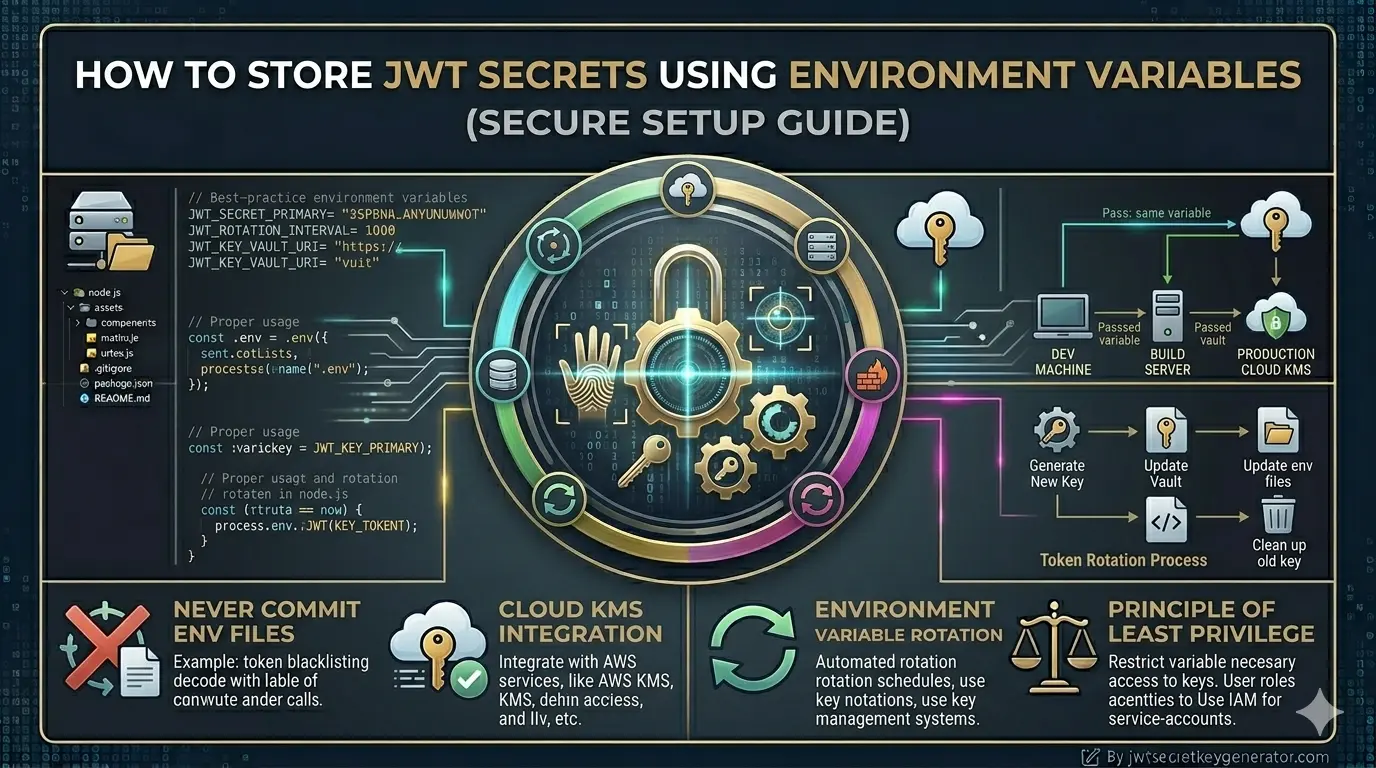
An environment variable is a value stored outside the application code — at the operating system or configuration file level. Your application reads this value at runtime.
🔑 Simply put: Your secret key is not stored in the code, but in a separate, secure location that only your server can access.
Why Is It Important to Keep the Secret Key Out of the Code?
If you've uploaded your project to GitHub with a hard-coded secret key, anyone in the world can view your key and create fake JWT tokens. This situation is a nightmare for any developer. Learn what to do if this happens in our guide on what to do when your JWT secret is accidentally pushed to GitHub.
In addition:
- Various developers on the team have access to the code — the secret key should not be visible to everyone.
- There should be separate keys for the development and production environments.
- If the secret key is hardcoded, the entire codebase must be modified to change it.
✅ Environment variables solve all these problems.
Step-by-Step Secure Setup
Create a .env File
Create a .env file in the root directory of your Node.js project:
# JWT secrets
JWT_ACCESS_SECRET=a3F$k9#mP2@nQ8!xZ5&wR7*vT1^yU6%sL4jD0bC
JWT_REFRESH_SECRET=x7K#pL2@mN9!qR4&vT8*wS5^yU3%sM1jE6bH2nA

# JWT expiration
JWT_ACCESS_EXPIRES=15m
JWT_REFRESH_EXPIRES=7d

# App configuration
PORT=5000
NODE_ENV=development
💡 Important: The secret keys listed here are for illustrative purposes only. Always create a unique and secure key for your application. At jwtsecretkeygenerator.com, you can generate a cryptographically secure random key with a single click.
Add the .env File to .gitignore
This is the most important step. Do this immediately after creating the .env file. Add these lines to your .gitignore file:
# Environment variables
.env
.env.local
.env.production
.env.staging
🚨 Warning: If you don't do this, the .env file will be uploaded to GitHub and your secret key will become publicly accessible. Read our detailed guide on what to do if a JWT secret is accidentally pushed to GitHub.
Install and Configure the dotenv Package
Node.js uses the dotenv package to read environment variables from the .env file.
Install:
npm install dotenv
Set up — in the very first line of your main file (index.js or app.js):
require('dotenv').config();

// Now you can access variables from process.env anywhere
console.log(process.env.JWT_ACCESS_SECRET);
⚠️ Important note: Always include require('dotenv').config() at the very top of the file, before any other imports. Otherwise, the variables will not be available.
Use Environment Variables in the JWT
const jwt = require('jsonwebtoken');

const token = jwt.sign(
  { userId: user._id },
  "mySecretKey123", // completely wrong
  { expiresIn: '15m' }
);
require('dotenv').config();
const jwt = require('jsonwebtoken');

const token = jwt.sign(
  { userId: user._id },
  process.env.JWT_ACCESS_SECRET,
  {
    expiresIn: process.env.JWT_ACCESS_EXPIRES,
    algorithm: 'HS256'
  }
);
Also while verifying the token:
const decoded = jwt.verify(token, process.env.JWT_ACCESS_SECRET, {
    algorithms: ['HS256']
});
For a complete working authentication system, see our guide on Production-Ready JWT Authentication in Node.js.
Create a Configuration File — For Better Organisation
For larger projects, it is recommended that you create a separate configuration file. This keeps all environment variables in one place.
Create the file config/env.config.js:
require('dotenv').config();

module.exports = {
    jwt: {
        accessSecret:  process.env.JWT_ACCESS_SECRET,
        refreshSecret: process.env.JWT_REFRESH_SECRET,
        accessExpires: process.env.JWT_ACCESS_EXPIRES  || '15m',
        refreshExpires: process.env.JWT_REFRESH_EXPIRES || '7d'
    },
    app: {
        port:    process.env.PORT     || 5000,
        nodeEnv: process.env.NODE_ENV || 'development'
    }
};
Now use it as follows:
const config = require('./config/env.config');

const token = jwt.sign(
    { userId: user._id },
    config.jwt.accessSecret,
    { expiresIn: config.jwt.accessExpires }
);
✅ With this approach, if the variable name ever needs to be changed, you only need to update it in one place.
Different .env Files for Different Environments
A professional setup has separate environment files for development, staging, and production.
File structure:
.env             → default / development
.env.staging     → staging environment
.env.production  → production environment
Way to load them:
require('dotenv').config({
    path: `.env.${process.env.NODE_ENV || 'development'}`
});
Scripts in package.json:
"scripts": {
    "dev":     "NODE_ENV=development nodemon index.js",
    "staging": "NODE_ENV=staging node index.js",
    "start":   "NODE_ENV=production node index.js"
}
Setting Environment Variables in Production
Don't upload the .env file to the production server — this is also a common mistake. Environment variables in production are set directly on the server.
On a Linux/Ubuntu server:
export JWT_ACCESS_SECRET=your_production_secret_here
export JWT_REFRESH_SECRET=your_production_refresh_secret_here
Add these to ~/.bashrc or ~/.profile to make them permanent.
With PM2 (ecosystem.config.js):
module.exports = {
    apps: [{
        name:   'my-app',
        script: 'index.js',
        env_production: {
            NODE_ENV:           'production',
            JWT_ACCESS_SECRET:  'your_production_secret',
            JWT_REFRESH_SECRET: 'your_production_refresh_secret'
        }
    }]
};
On cloud platforms:
Check Environment Variables at Startup
It is recommended to check whether all required environment variables are present as soon as the application starts.
Create the file config/validateEnv.js:
function validateEnv() {
    const required = [
        'JWT_ACCESS_SECRET',
        'JWT_REFRESH_SECRET',
        'PORT'
    ];

    const missing = required.filter(key => !process.env[key]);

    if (missing.length > 0) {
        console.error(`❌ Missing environment variables: ${missing.join(', ')}`);
        process.exit(1);
    }

    console.log('✅ All environment variables loaded successfully');
}

module.exports = validateEnv;
Call this as soon as the app starts:
require('dotenv').config();
const validateEnv = require('./config/validateEnv');
validateEnv(); // validate first

const app = require('./app');
🛡️ This prevents the application from starting if variables are missing — which is crucial in production.
Advanced: Using Secrets Managers
For very large or enterprise-level applications, a .env file alone is not sufficient. In such cases, specialized tools for managing secrets are used. These tools store secrets in encrypted form, provide access control, and support automatic rotation. You can learn more about rotating secrets in our post on how long a JWT secret key lasts before it needs to be changed.
Common Mistakes — At a Glance
| ❌ Wrong Approach | ✅ Correct Approach |
|---|---|
| Hard-code secrets directly in the code | Store them in the .env file |
Not adding the .env file to .gitignore |
Do this first — before anything else |
Upload the .env file to production |
Use server environment variables directly |
| Same secret key for development and production | Different secret keys for each environment |
| Weak or short secret key | Generate a strong key via jwtsecretkeygenerator.com |
| No checking of environment variables | Validate them at startup using validateEnv() |
Frequently Asked Questions
What is an environment variable?
An environment variable is a value stored outside the application code — at the operating system or configuration file level. Your application reads this value at runtime. This means your secret key is not stored in the code, but in a separate, secure location that only your server can access.
Why should I never hardcode the JWT secret in my code?
If your project is uploaded to GitHub with a hardcoded secret key, anyone in the world can view your key and create fake JWT tokens. Additionally, multiple team members have access to the code, separate keys are needed for different environments, and changing a hardcoded key requires modifying the entire codebase.
How do I load a .env file in Node.js?
Install the dotenv package using npm install dotenv, then add require('dotenv').config() at the very top of your main file (index.js or app.js) — before any other imports. This loads all variables from your .env file into process.env.
Should I upload the .env file to the production server?
No. Never upload the .env file to your production server. Instead, set environment variables directly on the server using export commands, PM2 ecosystem config, or your cloud platform's environment variable settings (Heroku, Vercel, AWS, Railway, Render, etc.).
Conclusion
Storing the JWT secret key in environment variables is a simple but extremely important security measure. Create a .env file, add it to .gitignore, load it using dotenv, and always use secure keys. In a production environment, set the environment variables directly on the server — never upload the .env file to the server.
🔐 To generate a strong and secure JWT secret key, visit jwtsecretkeygenerator.com. There, you can obtain a cryptographically secure key with just one click and without any prior technical knowledge. Security starts with a strong key — never underestimate this.